Updates & Upgrades
Need help getting set up?
Bunker Operations provides managed infrastructure and hands-on setup assistance for organizations running Changemaker Lite. We handle domains, tunnels, SMTP, and servers so you can focus on your campaign. Get in touch: bnkops.com | admin@bnkops.ca
Changemaker Lite includes a built-in upgrade system that pulls code updates, rebuilds containers, runs database migrations, and restarts services — all while preserving your customizations.
There are two ways to upgrade:
- Admin GUI — Check for updates and run upgrades from Settings > System
- CLI — Run
./scripts/upgrade.shdirectly from the command line
Both methods execute the same 6-phase upgrade process.
Prerequisites
Upgrade Watcher (Required for GUI Method)
The admin GUI triggers upgrades via a systemd path watcher that monitors for trigger files. This must be installed on the host system.
Install during initial setup:
The config.sh wizard offers to install the watcher automatically (Step 13). If you skipped it, install manually:
# Edit the systemd units to set your project path and user
sed -e "s|__PROJECT_DIR__|$(pwd)|g" scripts/systemd/changemaker-upgrade.path > /tmp/changemaker-upgrade.path
sed -e "s|__PROJECT_DIR__|$(pwd)|g" -e "s|__USER__|$(whoami)|g" scripts/systemd/changemaker-upgrade.service > /tmp/changemaker-upgrade.service

# Install and enable
sudo cp /tmp/changemaker-upgrade.path /tmp/changemaker-upgrade.service /etc/systemd/system/
sudo systemctl daemon-reload
sudo systemctl enable --now changemaker-upgrade.path
Verify it's running:
How the watcher works
The API container writes a trigger.json file to a shared data/upgrade/ volume. The systemd path watcher detects the file and runs scripts/upgrade-watcher.sh on the host, which dispatches to the appropriate script (check or upgrade). Progress and results are communicated back via JSON files that the API reads.
Method 1: Admin GUI
Checking for Updates
- Navigate to Settings (
/app/settings) - Click the System tab
- Click Check for Updates
The System tab shows your current version, last commit message, and auto-upgrade settings:
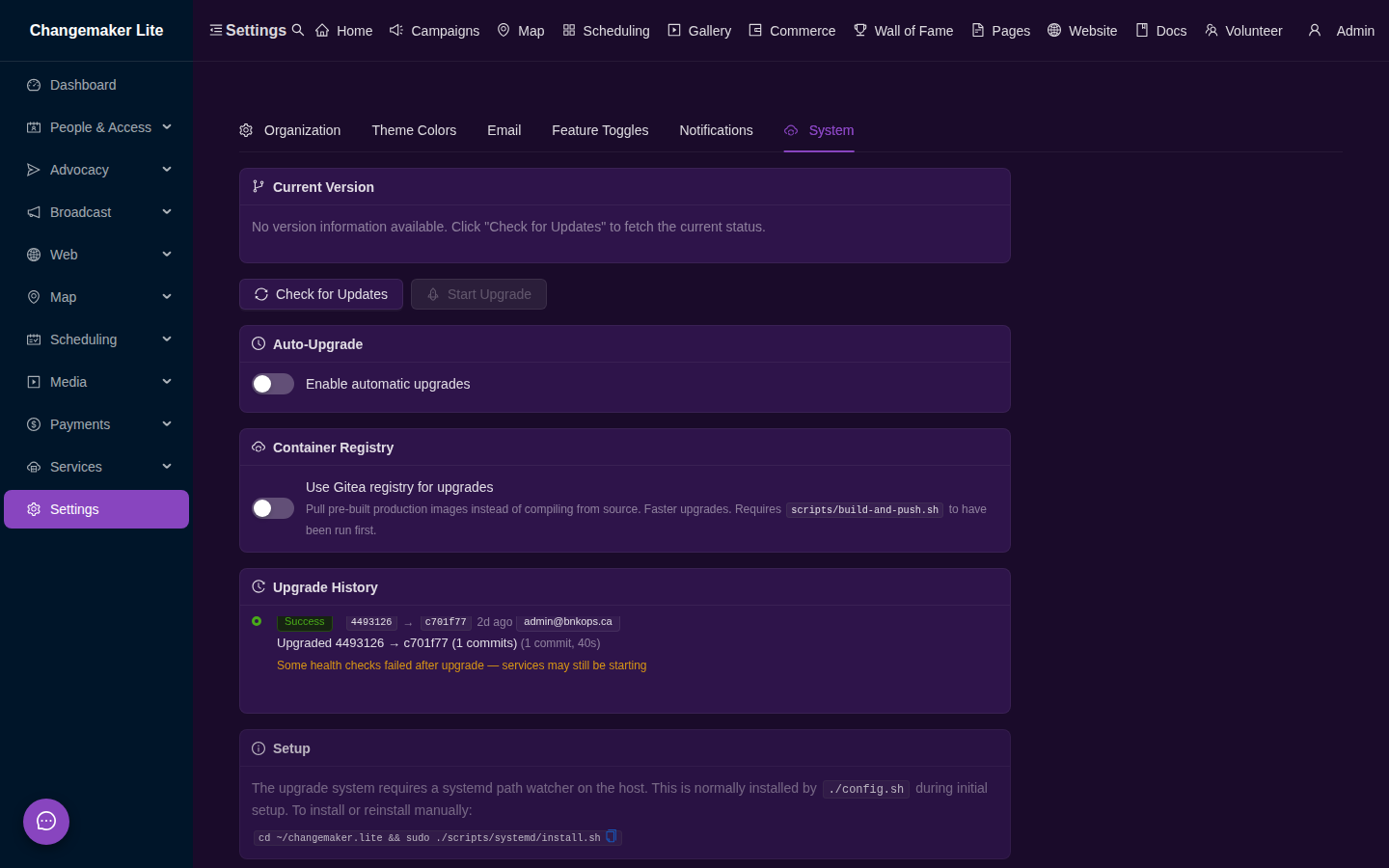
The system fetches from the git remote and shows:
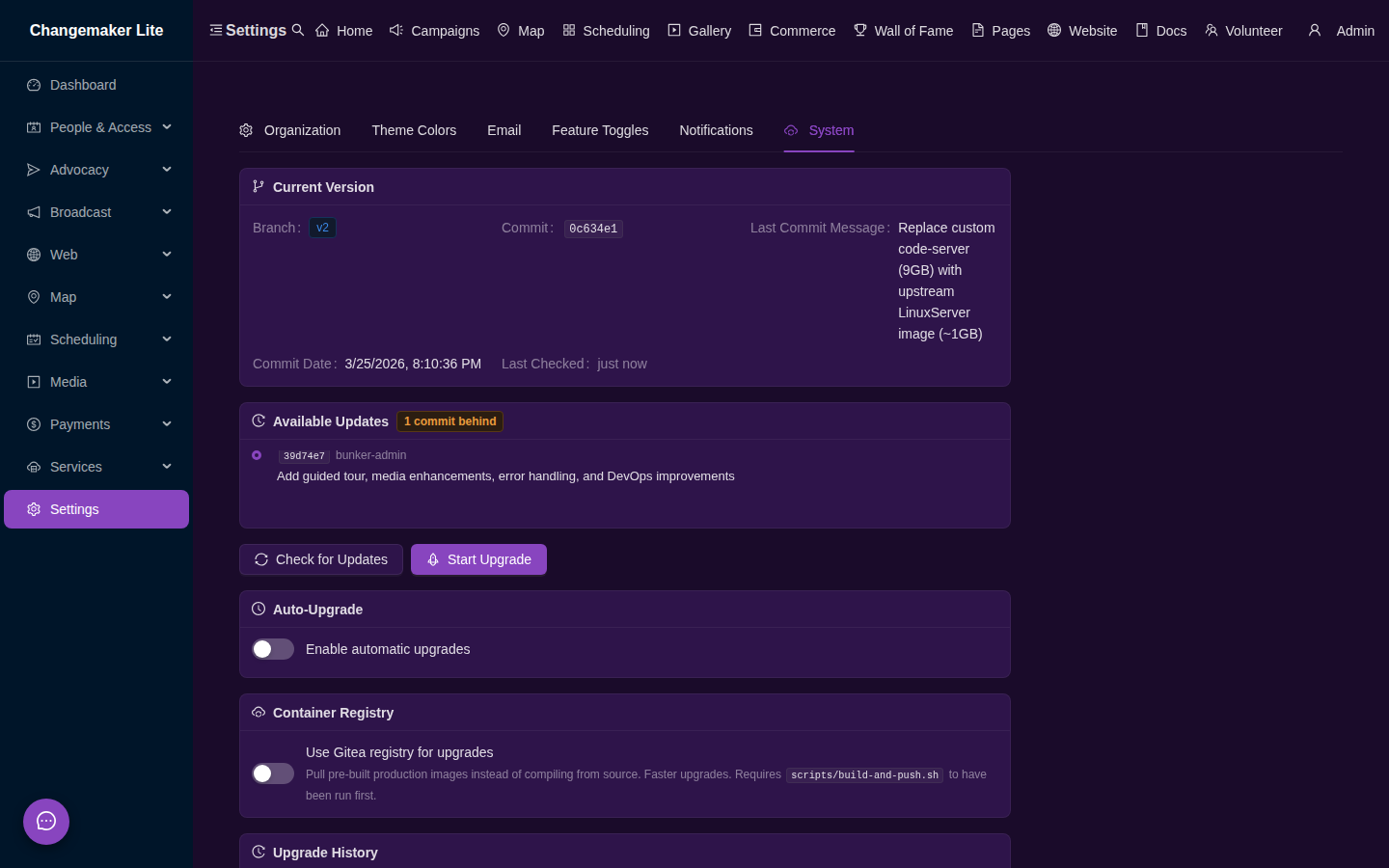
- Current commit hash and message
- Remote commit hash (if different)
- Number of commits behind
- Changelog of incoming changes
When updates are available, the panel highlights how many commits are behind and lists the incoming changes:
Starting an Upgrade
- Review the changelog to understand what's changing
- Click Start Upgrade
- Optionally configure:
- Skip backup — skip the database backup phase (not recommended)
- Pull images — also update third-party Docker images (PostgreSQL, Redis, etc.)
- Use registry images — pull pre-built images from Gitea instead of compiling from source (faster — requires
scripts/build-and-push.shto have been run first) - Dry run — preview what would happen without making changes
- Monitor the 6-phase progress indicator
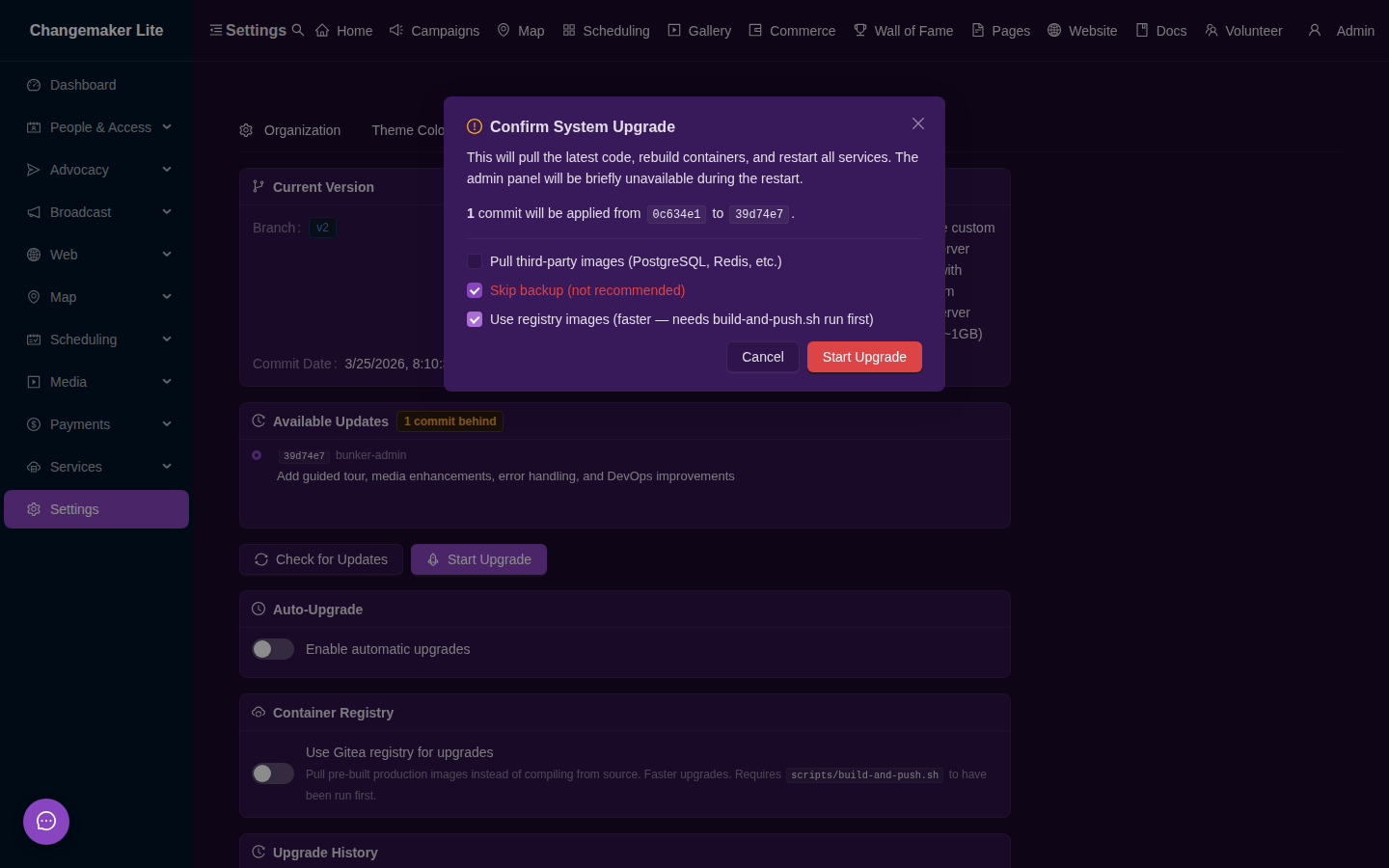
The GUI polls for progress updates and displays the current phase, percentage, and status message in real time.
Upgrade Results
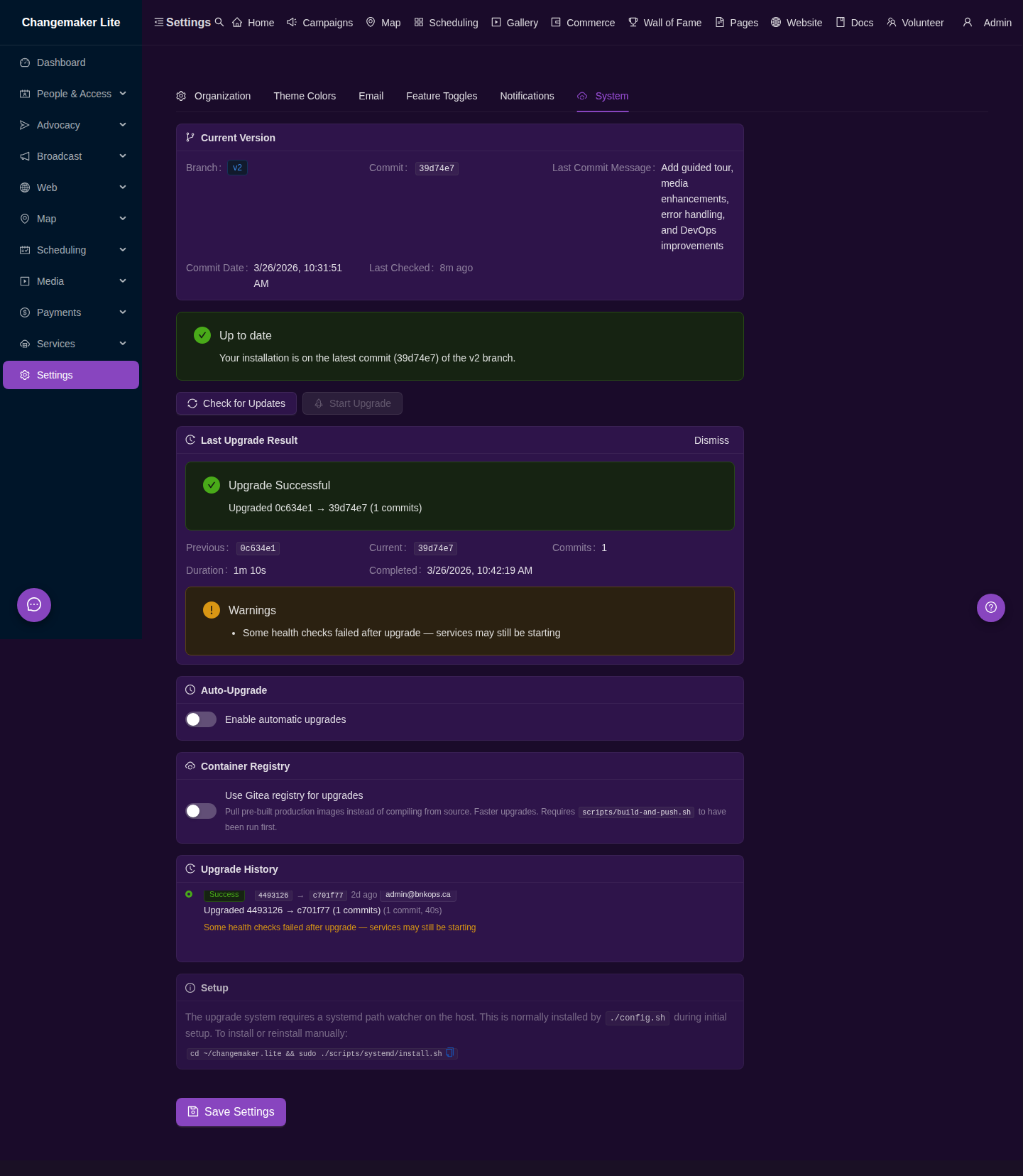
After the upgrade completes, the System tab shows the result — including the new version, health check status, and any warnings:
Tip
If health checks show warnings immediately after an upgrade, wait 1-2 minutes for services to fully start before investigating.
The 6 Upgrade Phases
Both the GUI and CLI methods execute the same 6-phase process:
| Phase | % | Name | What Happens |
|---|---|---|---|
| 1 | 5% | Pre-flight Checks | Verifies Docker, git, disk space (2 GB minimum), remote reachability, and clean working directory |
| 2 | 15% | Backup | Runs scripts/backup.sh (pg_dump + archive), backs up user-modifiable content, saves pre-upgrade commit hash |
| 3 | 30% | Code Update | Saves user paths, stashes local changes, git pull, pops stash with auto-conflict resolution, detects new .env variables |
| 4 | 50% | Container Rebuild | Rebuilds api, admin, media-api from source (default) or pulls pre-built images from the Gitea registry (--use-registry); conditionally rebuilds nginx and code-server if their configs changed; optionally pulls third-party images |
| 5 | 70% | Service Restart | Stops app containers, force-recreates LSIO containers, verifies Gancio config, starts infrastructure, waits for PostgreSQL, starts API (runs migrations), starts everything else, restarts Newt tunnel and monitoring if they were running |
| 6 | 90% | Verification | Health checks for API, Admin, Media API, Gancio, MkDocs; detects containers in restart loops |
What Gets Preserved
The upgrade script automatically preserves user-modifiable paths that you may have customized:
| Path | What It Contains |
|---|---|
mkdocs/docs/ |
Your documentation content |
mkdocs/mkdocs.yml |
MkDocs configuration |
mkdocs/site/ |
Built documentation site |
configs/ |
Prometheus, Grafana, Alertmanager, Homepage configs |
nginx/conf.d/services.conf |
Custom nginx service proxies |
These files are saved before git pull and unconditionally restored afterward, even if the pull introduces changes to them. Your versions always win.
Tip
The .env file is never touched by git pull (it's in .gitignore). However, if new environment variables are added in .env.example, the upgrade script automatically appends them to your .env with their default values and warns you to review them.
Method 2: CLI
Run the upgrade script directly:
Options
| Flag | Description |
|---|---|
--skip-backup |
Skip the backup phase (requires --force) |
--pull-services |
Also pull new third-party Docker images |
--use-registry |
Pull pre-built images from Gitea instead of compiling from source |
--dry-run |
Show what would happen without executing |
--force |
Continue past non-critical warnings |
--branch BRANCH |
Git branch to pull (default: current branch) |
--rollback |
Rollback to pre-upgrade commit |
--api-mode |
Write progress/result JSON for admin GUI (used internally) |
Examples
# Standard upgrade
./scripts/upgrade.sh

# Preview changes without executing
./scripts/upgrade.sh --dry-run

# Full upgrade including third-party image updates
./scripts/upgrade.sh --pull-services

# Upgrade using pre-built images from Gitea registry (faster, no TypeScript compile)
./scripts/upgrade.sh --use-registry --force --skip-backup

# Rollback to the last pre-upgrade state
./scripts/upgrade.sh --rollback
Registry Mode (Fast Upgrades)
By default, the upgrade script compiles TypeScript from source (npm run build) and rebuilds Docker images on the deployment server. Registry mode skips this by pulling pre-built production images from the Gitea container registry — faster and requires no build tooling on the server.
How It Works
- Run
scripts/build-and-push.shon a machine with Docker (usually your dev machine) to build and push production images tagged with the current commit SHA - During the next upgrade, pass
--use-registry(CLI) or enable the checkbox (GUI) - The upgrade script pulls
gitea.bnkops.com/admin/changemaker-{service}:{sha}instead of rebuilding from source - If a registry image is unavailable (e.g., the SHA wasn't pushed), it automatically falls back to a source build
Building and Pushing Images
# Build and push all core services (api, admin, media-api, nginx)
./scripts/build-and-push.sh

# Skip code-server (9 GB — push only when Dockerfile changes)
./scripts/build-and-push.sh --services api,admin,media-api,nginx

# Build only, no push (verify locally first)
./scripts/build-and-push.sh --no-push

# Also mirror third-party images (postgres, redis, etc.) to Gitea
./scripts/mirror-images.sh
Registry prerequisites
- Run
docker login gitea.bnkops.comonce per machine before pushing - Set
GITEA_REGISTRY_USERandGITEA_REGISTRY_PASSin.envfor the admin GUI's Registry status endpoint - gitea.bnkops.com must be reachable without proxies that limit upload size (Cloudflare free plan blocks blobs >100 MB)
Release installs upgrade automatically via registry
If you installed from a release tarball (not git clone), the upgrade script automatically uses registry mode. It downloads the latest release package from Gitea instead of running git pull. No additional configuration needed.
Rollback
Automatic Rollback
If the upgrade fails at any phase, the script prints detailed rollback instructions including the pre-upgrade commit hash. Use the --rollback flag:
This:
- Finds the latest backup archive
- Extracts the pre-upgrade commit hash from
git-commit.txtinside the archive - Checks out that commit
- Rebuilds and restarts all containers
Warning
--rollback restores the code to the pre-upgrade state but does not automatically restore the database. If database migrations were applied during the failed upgrade, you may need to manually restore from the backup archive.
Manual Rollback
# 1. Restore code
cd /path/to/changemaker.lite
git checkout <pre-upgrade-commit-hash>

# 2. Rebuild and restart
docker compose build api admin media-api
docker compose up -d

# 3. Database restore (if needed — destructive!)
ls -lt backups/changemaker-v2-backup-*.tar.gz | head -5
tar xzf backups/<backup>.tar.gz -C /tmp
gunzip -c /tmp/<backup>/v2-postgres.sql.gz | \
  docker exec -i changemaker-v2-postgres psql -U changemaker -d changemaker_v2
New Environment Variables
When upstream code adds new environment variables to .env.example, the upgrade script automatically:
- Compares
.env.exampleagainst your.env - Appends any missing variables with their default values
- Warns you to review the new additions
Always review new variables after an upgrade — some may need manual configuration.
Update Checker
A separate lightweight script checks for available updates without performing any changes:
This writes data/upgrade/status.json with:
- Current and remote commit hashes
- Number of commits behind
- Changelog (last 30 commits)
- Timestamp of last check
The admin GUI reads this file to display update availability.
Troubleshooting
Stale Progress Indicator
If the GUI shows an upgrade "in progress" but nothing is happening, the upgrade script may have crashed. The system automatically detects stale progress (no update for 10+ minutes) and treats it as not running.
To manually clear:
Merge Conflicts
If git pull encounters merge conflicts in user-modifiable paths (docs, configs), the upgrade script auto-resolves by keeping your version. If conflicts occur in project-owned files (api/, admin/), the upgrade fails and asks you to resolve manually.
Lock File
The upgrade script uses .upgrade.lock to prevent concurrent upgrades. If a previous upgrade crashed without cleaning up:
# Verify no upgrade is actually running
ps aux | grep upgrade.sh

# Remove stale lock
rm -f .upgrade.lock
Health Check Failures
If Phase 6 health checks fail, services may still be starting. Wait 1-2 minutes and check manually:
# API health
curl -s http://localhost:4000/api/health

# Container status
docker compose ps

# Recent logs
docker compose logs api --tail 50
docker compose logs admin --tail 50